
Aiyoda App Guide
Install the Aiyoda Console, point it at your database, and run your first inventory scan.
User Guide · 2026
Install the Aiyoda Console, point it at your database, and run your first inventory scan.
Work through the steps in order. Each one opens in place with its full walkthrough and screenshots, so you can jump straight to the part you need.
Check your environment before you begin, or hand these to a security review or procurement questionnaire.
Get in touch for a personalised demo of the Aiyoda platform, or email info@aiyoda.tech for technical assistance.
Visit www.aiyoda.tech to learn more about the platform.
Schedule a consultation with our team to transform your asset management.
The installer is a standard Windows MSI. It takes under a minute and does not require a reboot.
Locate the Aiyoda installer you downloaded from the portal and double-click it to start the setup wizard.

The wizard installs to C:\Program Files\Aiyoda Tech\Aiyoda\ by default. Leave Everyone selected so the console is available to any administrator who signs in to the machine, then confirm and let the installation run.
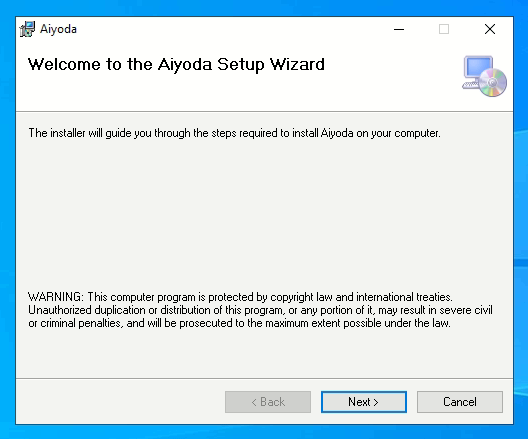
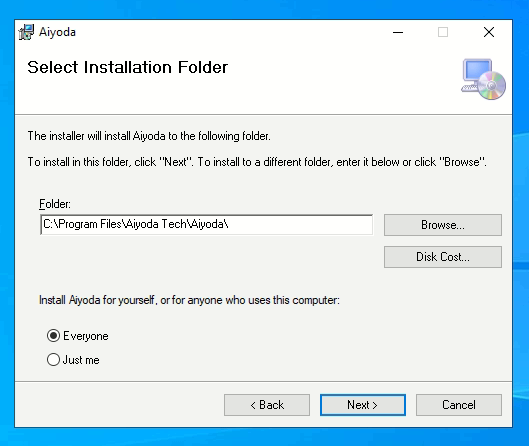
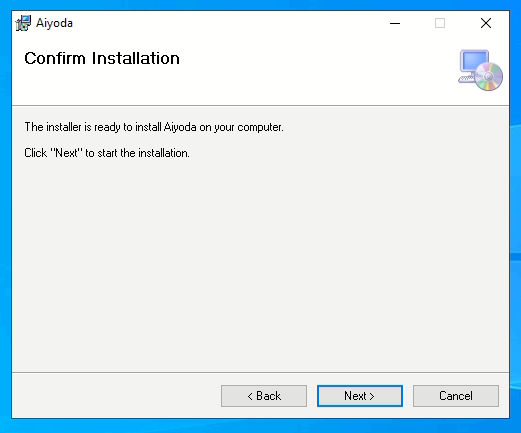
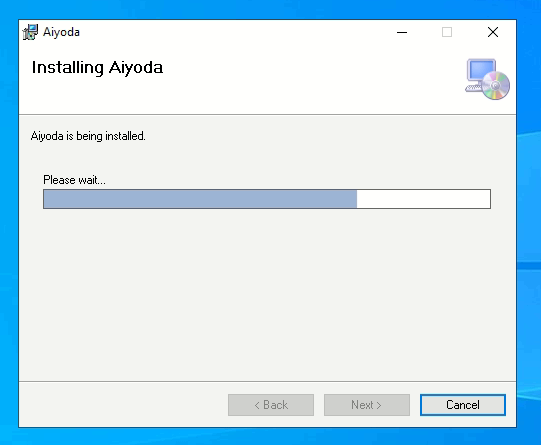
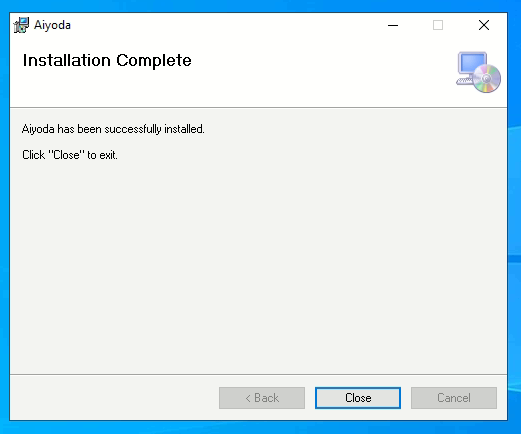
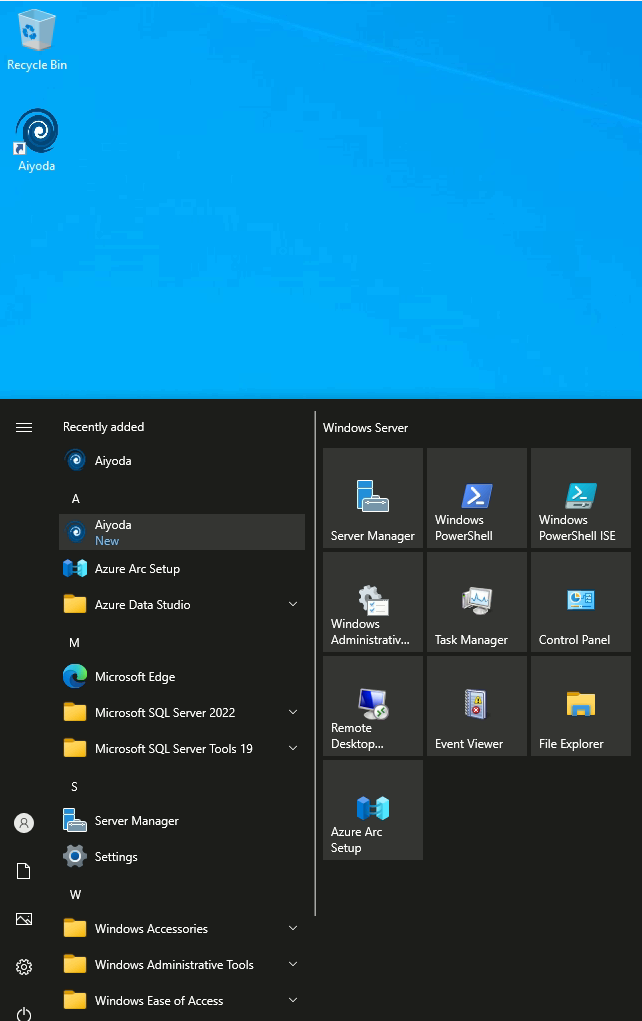
To get started, double-click the Aiyoda application — from the desktop shortcut or from the Start menu.
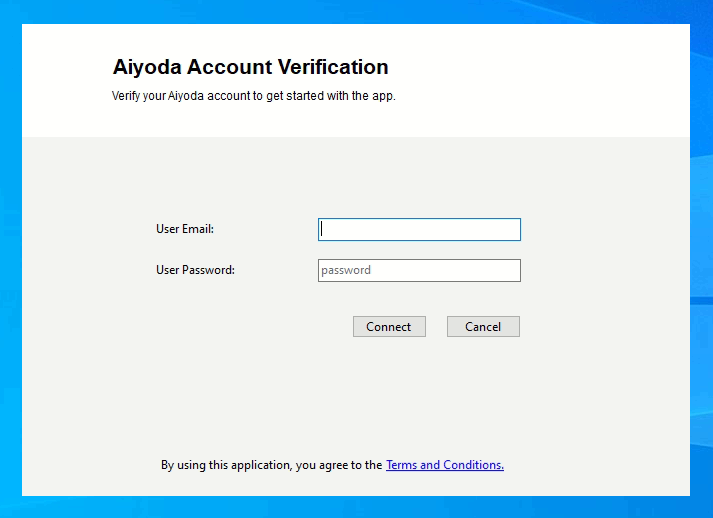
Once the application is executed you will see the licence verification screen. If prompted, enter the license key provided "pk_*******" and select Connect.
Licence verification needs the internet. TCP 443 must be open outbound from the Aiyoda app server so the console can reach the licensing endpoint. All other scanning happens inside your own network.
The first thing to do once you have validated the application licence is to set up the storage location for the collected data.
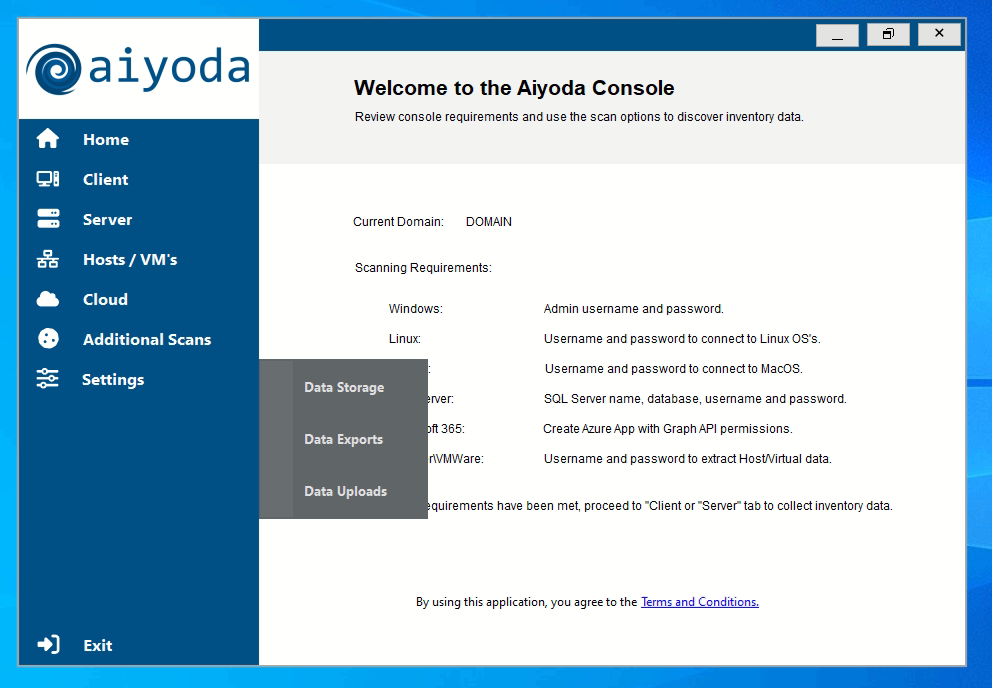
The console home screen lists the current domain and the credentials each scanning platform needs. From the left-hand menu choose Settings, then Data Storage.
There are two options for connecting the console to SQL Server:
In both cases, if you have a certificate and encryption configured on your SQL instance, tick Trust Server Certificate and SQL Encryption as required. Otherwise, leave them unticked.
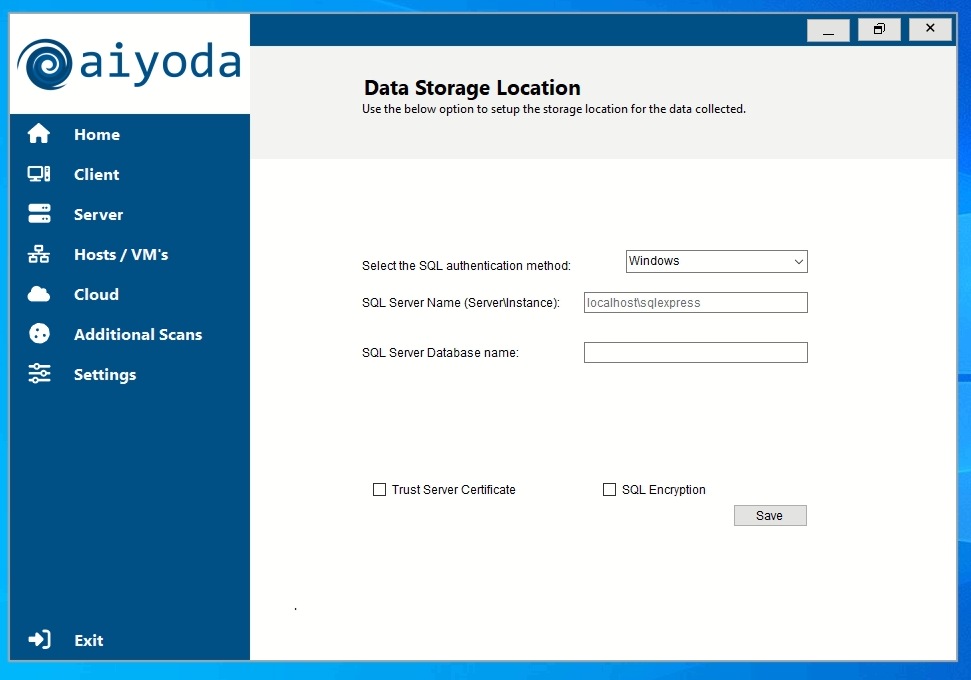
Save tests the connection. Once you have entered the required information, select the update button. The application performs a test connection to your SQL Server to confirm the data can be saved to that location.
Start with the Active Directory scan. This builds the device and user list that every other Windows scan targets. Each scan raises a notification when it completes.
The first action to take is to select the AD scan button. This scan gathers a full device and user list from Active Directory, and adds an AD status and benchmark to give you an active device and user count across the network. It takes only a few seconds to complete.
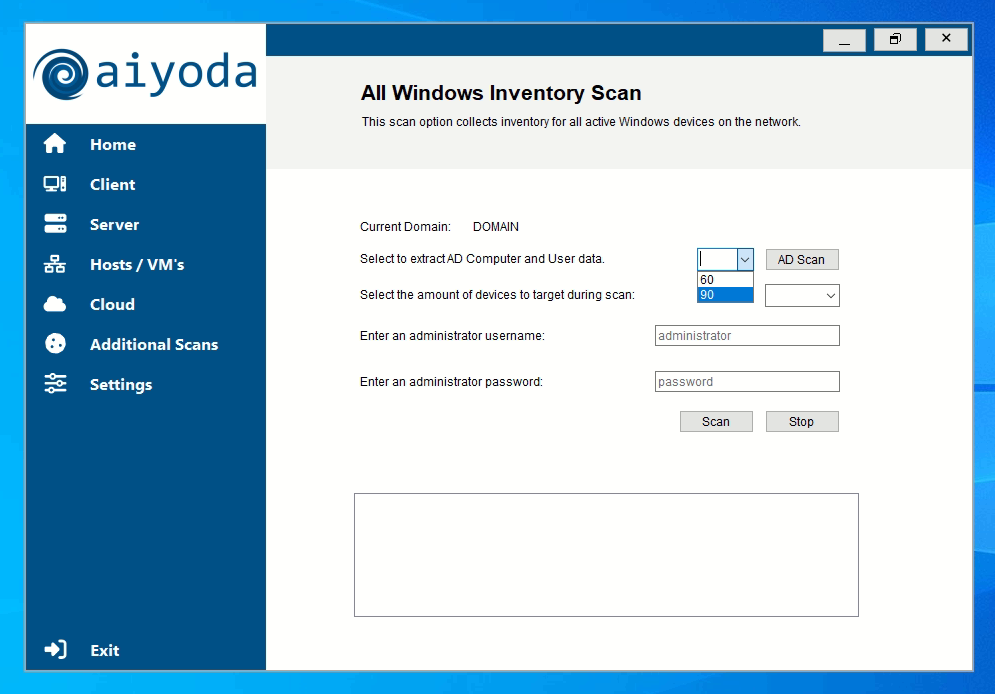
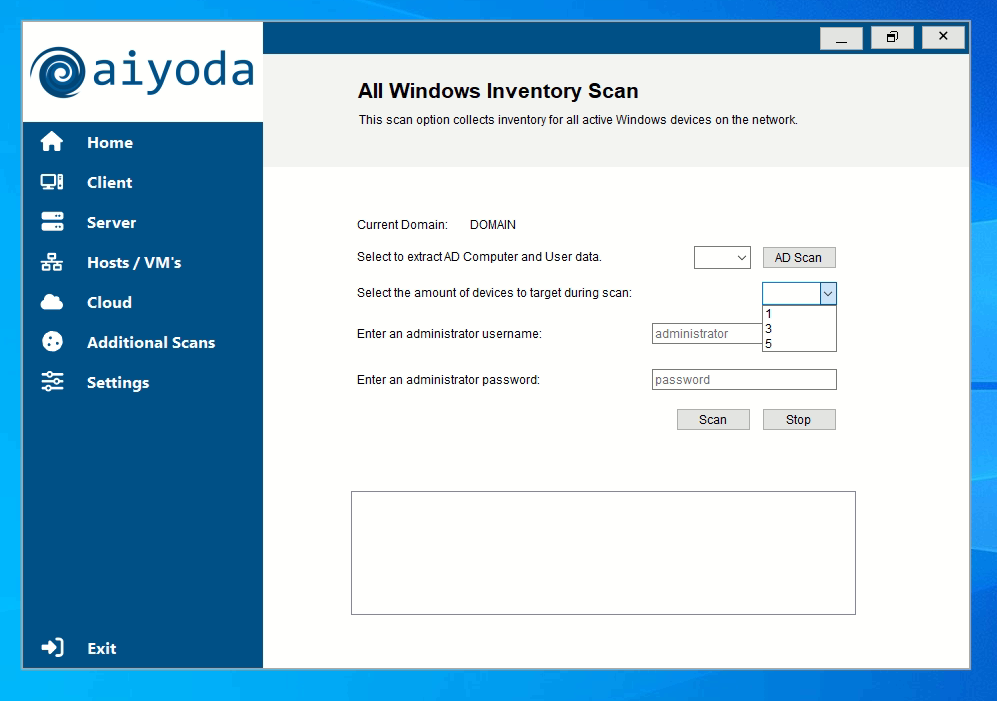
Next, collect software and hardware inventory for Windows devices. The Windows automated inventory scan uses the device list from the AD scan to target devices on the network. You can scan one device at a time, or in batches of 3 or 5. Enter an admin username and password, select scan, and you will receive a notification when the scan completes.
The IP Range option is another way to collect software and hardware inventory from Windows devices, letting you target a specific range on the network. As with the Windows scan you can scan one device at a time or in batches of 3 or 5. Enter an admin username and password and select scan.
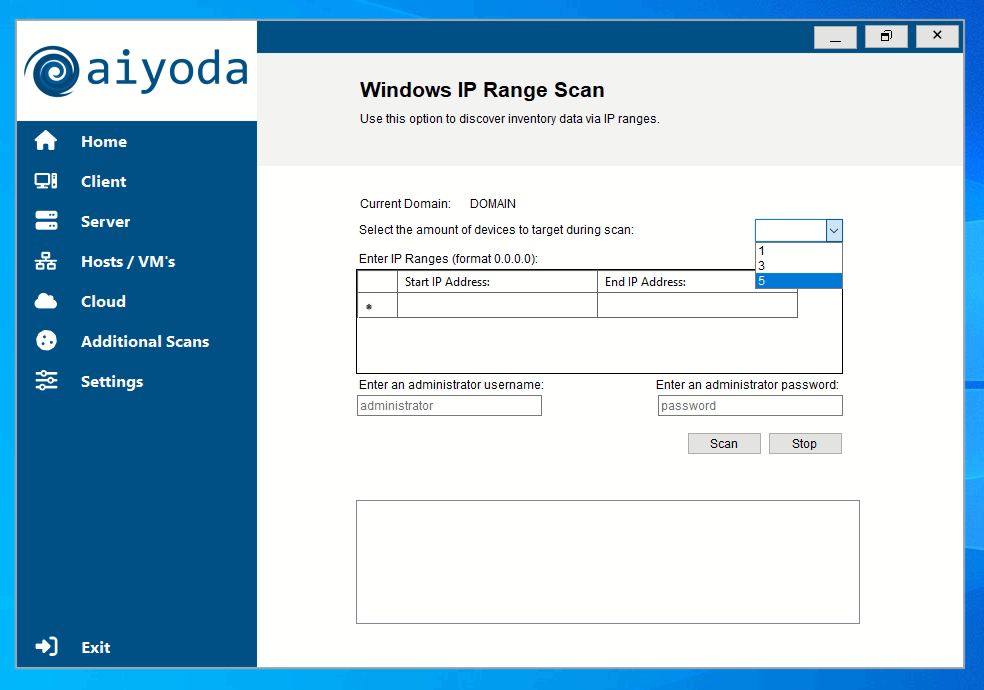
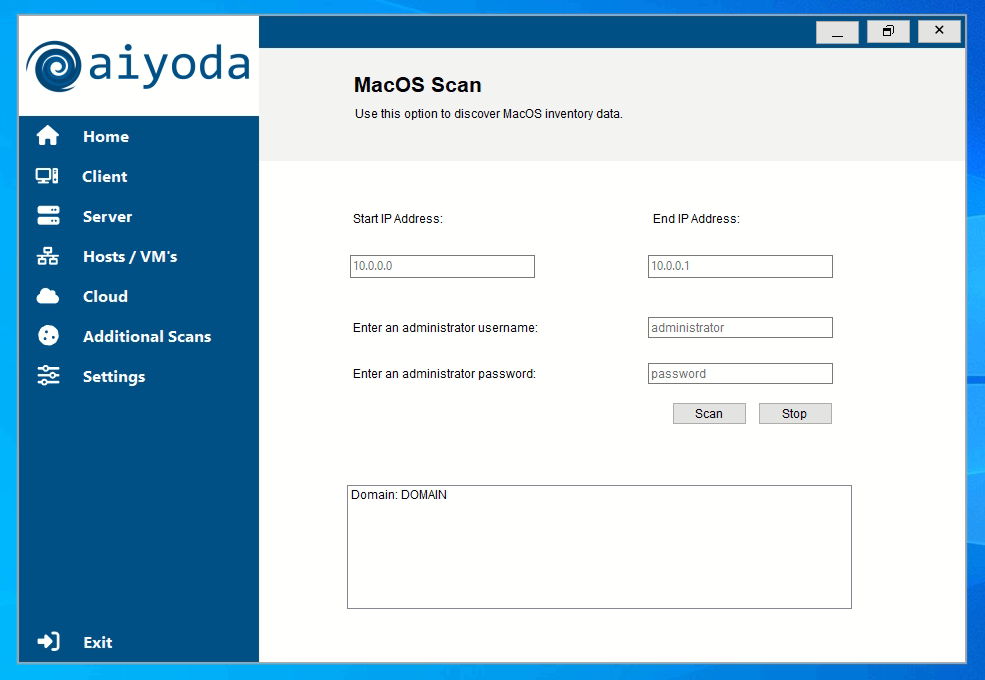
macOS inventory also uses the IP range scan option. With macOS you would typically target a specific device, but the range option is there to target several devices that share the same credentials. Along with the IP range, enter an admin username and password and select scan.
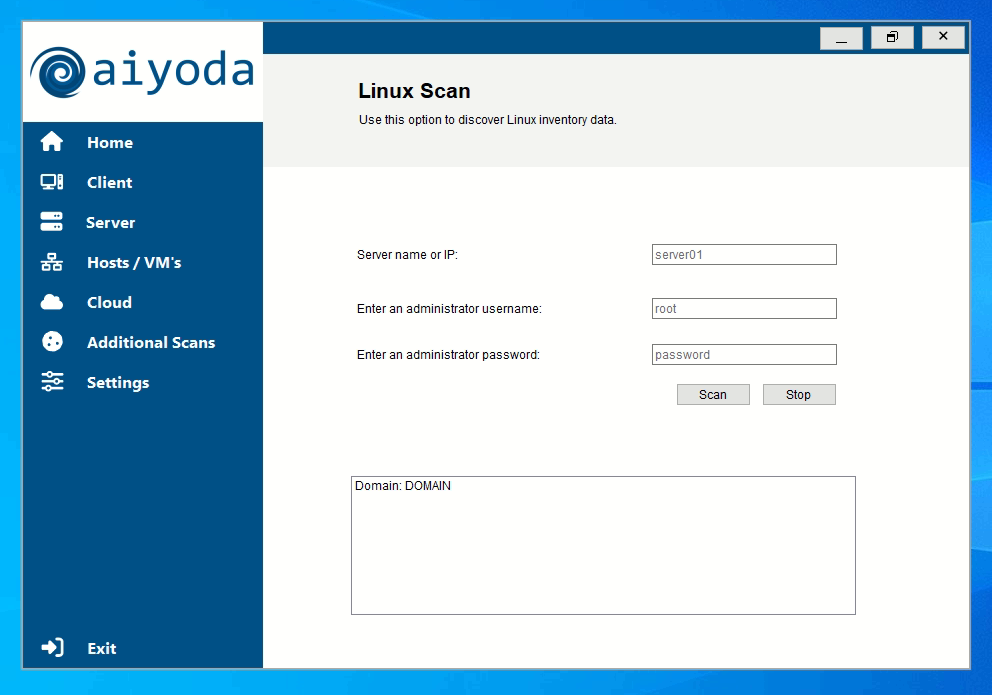
To collect Linux inventory, target the Linux device using either the server's name or IP address, along with the admin username and password, then select scan. You will receive a notification when the scan completes.
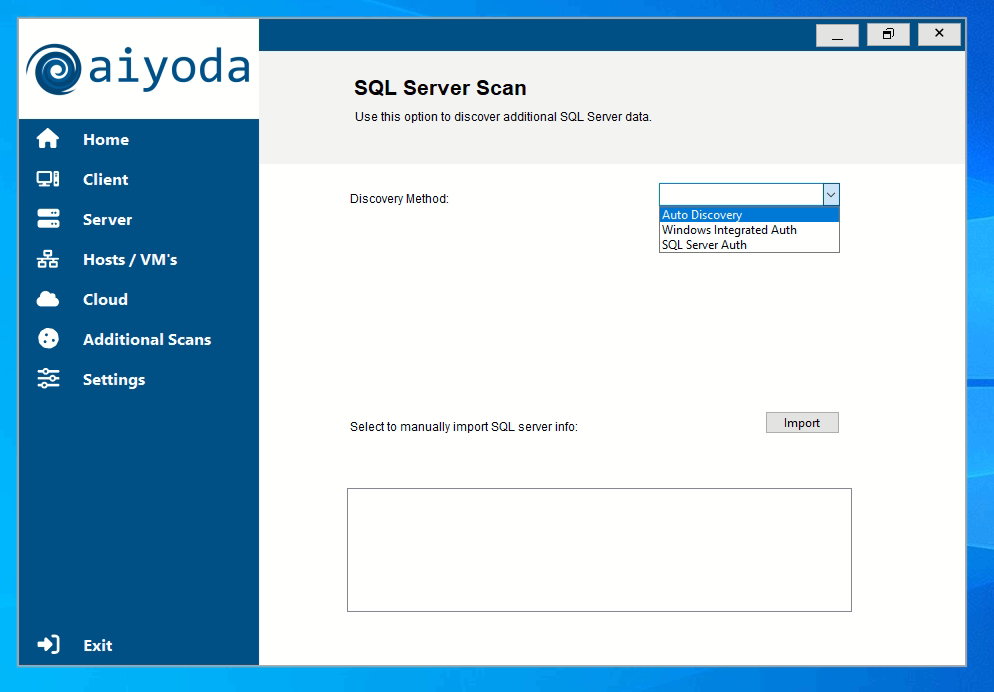
To collect SQL Server data you have two options:
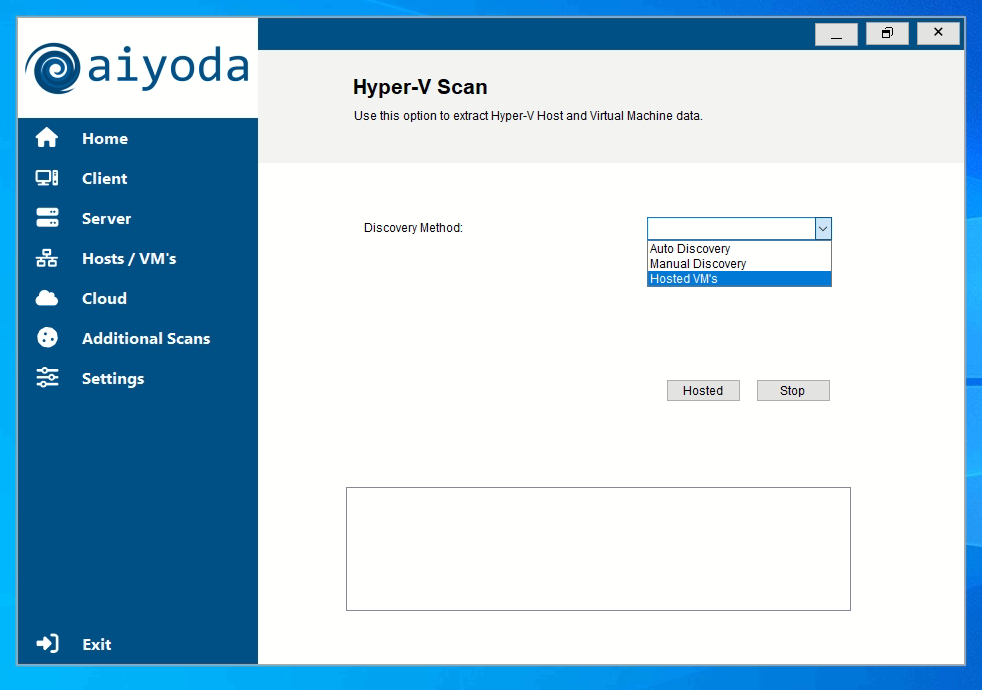
The Hyper-V scan is very simple and does not require any credentials. Enter the Hyper-V server name to collect the host and VM data.
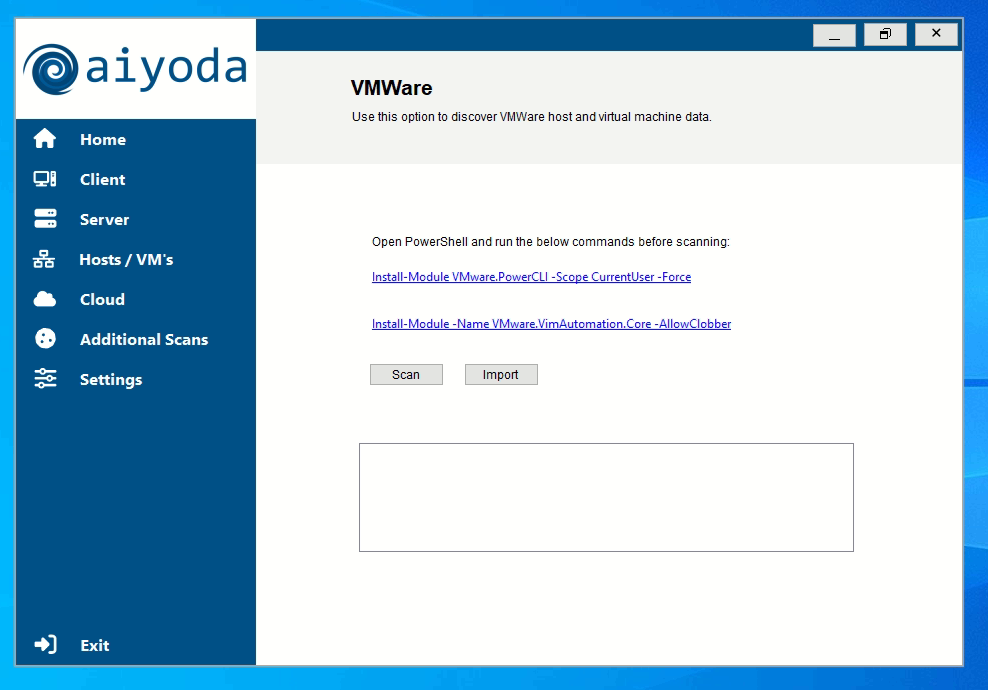
The VMware scan extracts similar data to the Hyper-V scan — host and virtual machine data. This option is not automated, so you need to target the VMware host specifically using the server's name or IP, along with the admin/root username and password.
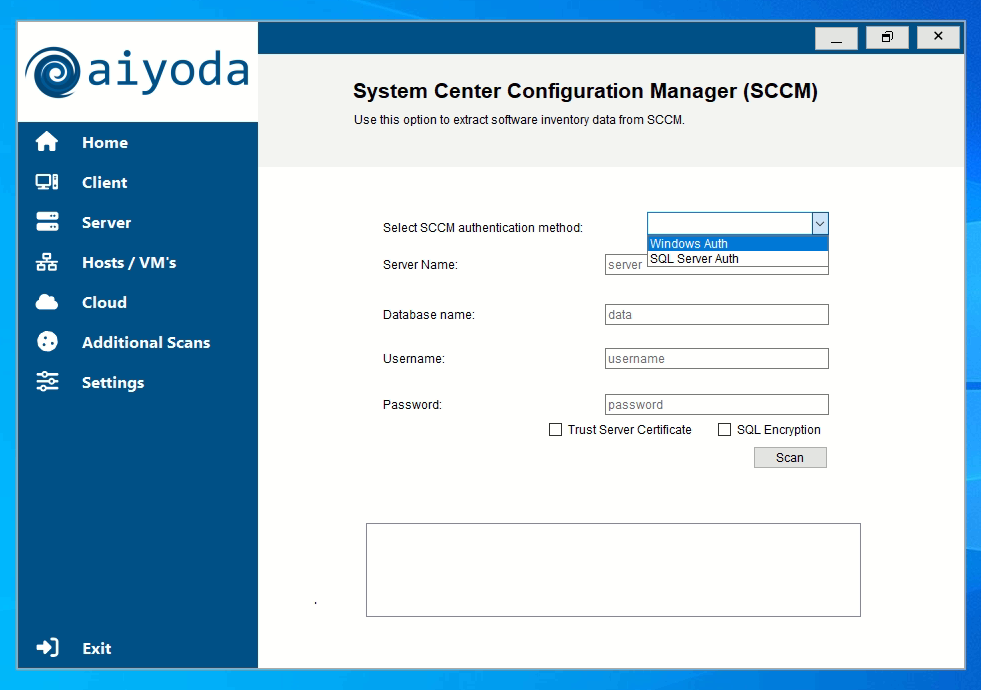
The SCCM scan extracts Configuration Manager data using either Windows or SQL Server credentials.
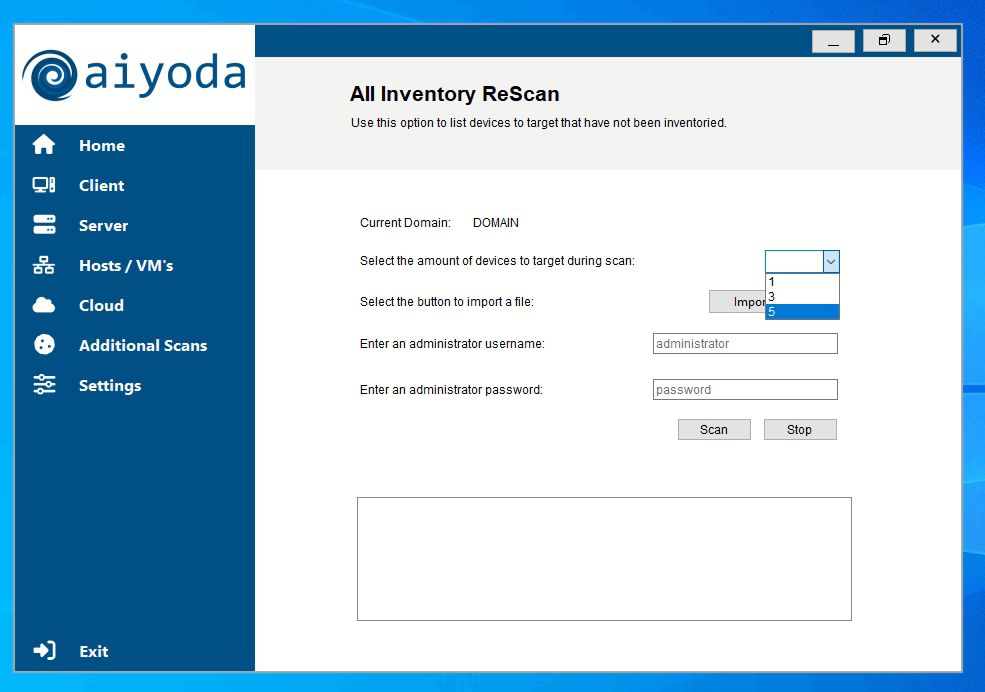
Use this option to rescan all devices that have not successfully been inventoried.
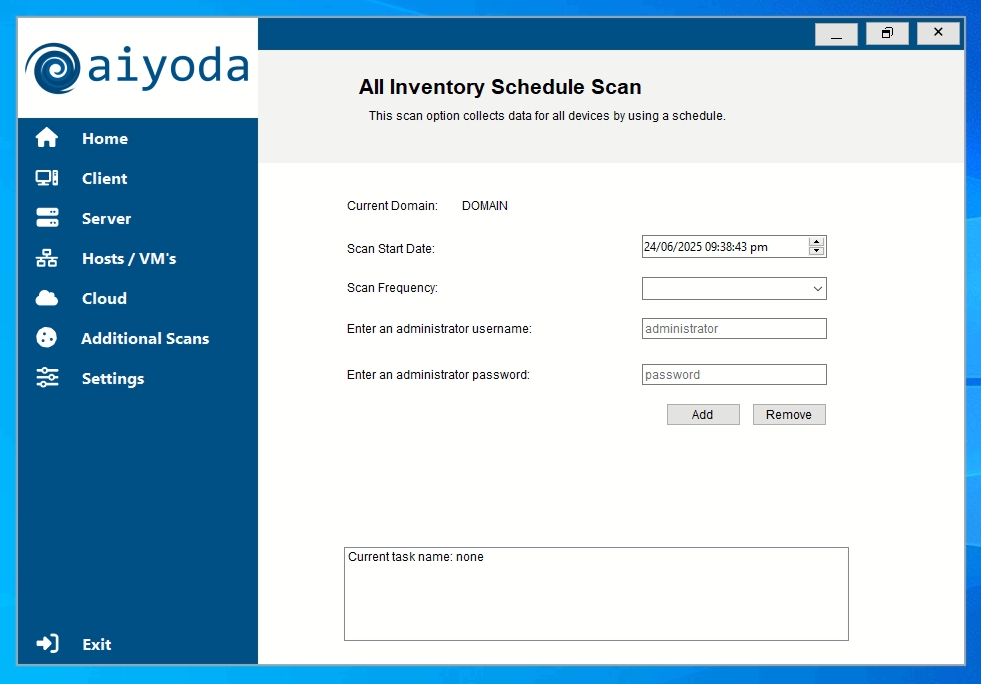
Use this option to schedule scans to run over a period.
Where there is no Active Directory network, use this option to discover devices within a workgroup environment.
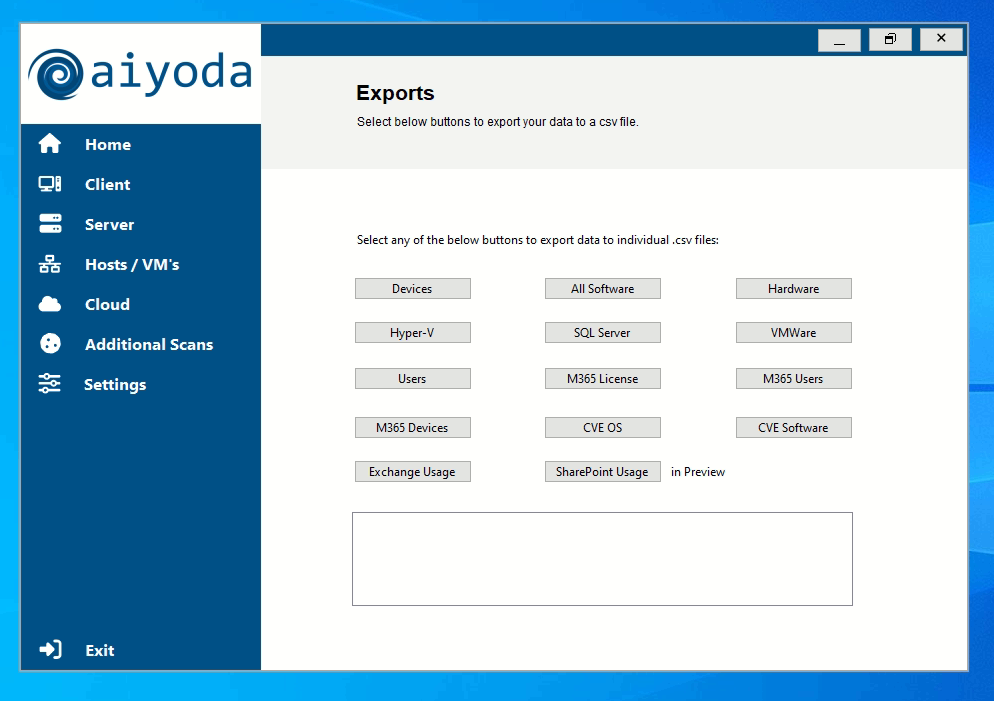
The Microsoft 365 scan option connects to the Microsoft Graph API to extract data. Set up the app registration once, then run the scans as often as you need.
Use https://aiyoda.tech/resources/EntraID to create the new app and grant api permissions.
On the Overview screen, copy and save the application (client) ID and the directory (tenant) ID in a secure location. Then navigate to Certificates & secrets and create a New client secret. Copy the secret value into the same secure location.
The secret value is shown once. Copy it as soon as it is created — Entra will not display it again, and you will have to generate a new secret if you lose it.
Back in the Aiyoda Console, enter the tenant ID, app ID and app secret you saved, and use Graph Test to confirm the connection. There are currently five options available to extract Microsoft data:
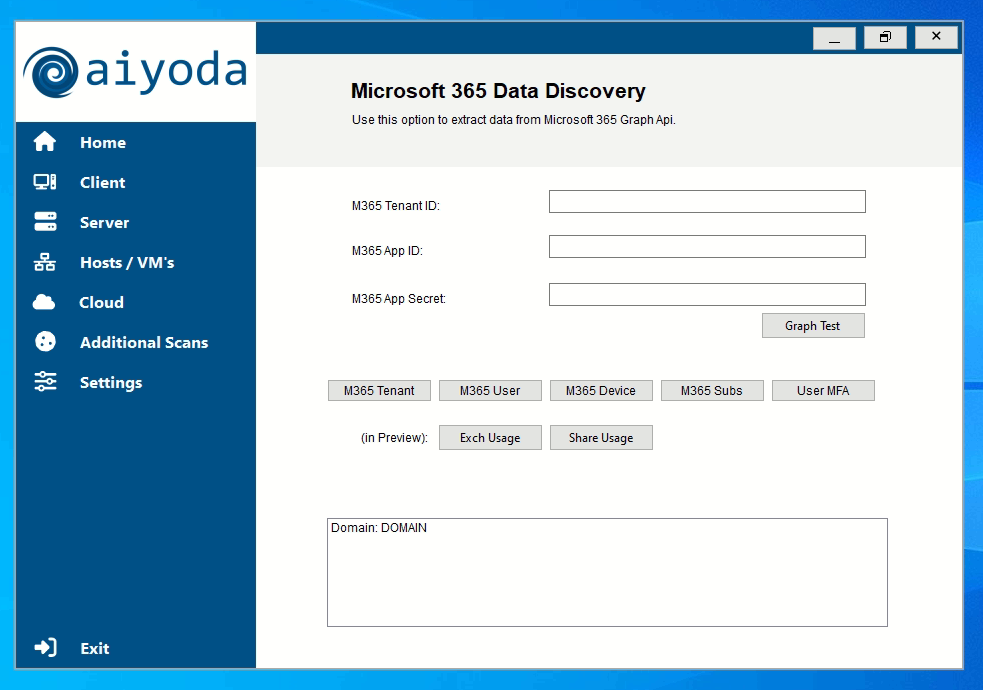
All of the scan types have their own log file, named with the date the scan was initiated. The log captures a summary of what happened during the scanning process and helps you troubleshoot devices that were not inventoried, along with any errors or issues that occurred. All log files are stored in readable .csv format.
You will find the log files in the following path:
C:\aiyoda_console\Logs
Stuck on an error? If you are not sure what an error means, or you are not able to resolve it, share the log file with the support team and they will assist.
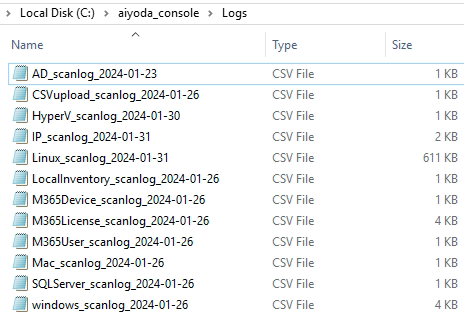
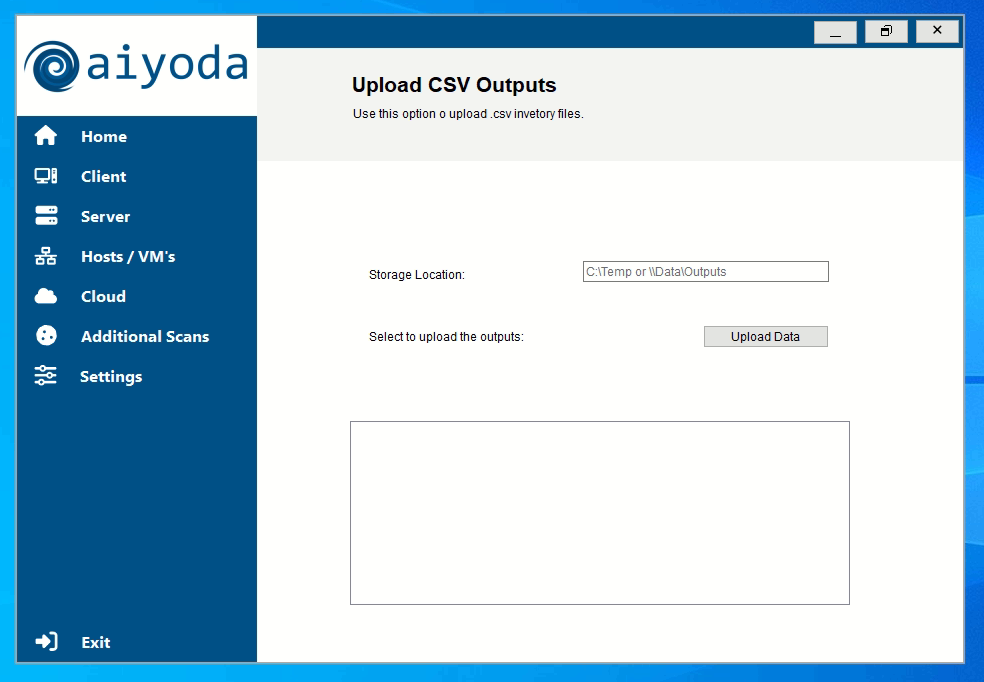
If there are devices that are not on the network, or users working remotely whose devices you still need to inventory, there is a manual option: export the data to a CSV file and then upload it using the Aiyoda Console. Request this manual option from the team if required, along with the guide for extracting the data.
The four errors that come up most often in the log files, and what to do about each one.
This error means the Aiyoda Console was unable to communicate with the target device, because the required port or service is not running on that device.
Resolution: enable the ports either through a Group Policy Object, or manually on the device.
The credentials used to extract the inventory data are either incorrect, or do not work for the device you are targeting.
Resolution: try a different set of credentials, attempt to log on to the device with those credentials to confirm they work, or use one of the manual scanning options.
You may see this error in the log files where the device status has already been updated, or where there was an issue connecting to the SQL table to update the relevant column.
Resolution: use a different scanning method to resolve the issue.
This occurs when the Aiyoda Console is unable to get a last logon user for the device, and writes NULL as the value instead.
Resolution: retry the scan against that specific device, or update the field manually within the SQL table.
Technical assistance. For help with anything in this guide, contact info@aiyoda.tech.
Make sure your environment meets all of the minimum requirements below. Aiyoda runs as a .NET Core application on Windows, with SQL Server as its data store. Check the firewall rules carefully to ensure successful device scanning across your network.
SQL Server setup. Download and install the latest SQL Server Express edition and SQL Server Management Studio from Microsoft before installing the Aiyoda Console.
The device running the Aiyoda Console must be joined and connected to Active Directory. Device names must be resolvable in DNS for proper communication.
All target devices being scanned must have their device names resolvable in DNS. This is required for Aiyoda to locate and connect to them during a scan.
Aiyoda has a very lightweight network footprint. Each successful inventory scan produces less than 30 KB of data per device, making it safe to run across low-bandwidth network segments without concern for congestion.
Initiates a complete full inventory scan for all devices on the network.
Re-initiates a scan targeting only devices that were not successfully inventoried in the previous run.
Lets you define a recurring schedule so scans run automatically at your desired interval.
| Platform | Credential type | Notes |
|---|---|---|
| Active Directory | No credentials required | Uses built-in .NET libraries to get AD data |
| Windows | Local or domain admin username & password | Existing accounts can be used — no new accounts required |
| SQL Server | Windows or SQL auth username & password | Either Windows integrated or SQL Server authentication |
| Microsoft 365 | Entra / Azure AD app registration | Create an app registration with Microsoft Graph API permissions |
| macOS | Admin username & password | Local admin account on the target device |
| Linux | Admin / root username & password | Root or sudo-capable account required for full inventory |
| VMware | Admin / root username & password | vCenter or ESXi admin credentials |
The most common security questions about Aiyoda, answered in a clear and concise format: what data is collected, how it is stored, network traffic, firewall requirements, authentication, development practices and more.
Aiyoda is an agentless, on-premises solution that operates entirely within your organisation's network. It does not require any software to be installed on the devices being scanned. Built on the latest security protocols and industry standards, it delivers rich interactive data visualisations, giving you clear and actionable insights into your environment.
The Aiyoda Console can be securely downloaded from the Aiyoda portal once you have authenticated with a valid username and password. All scanned data is stored in a SQL Server instance hosted within your own environment. This significantly minimises security risks by ensuring your data remains on-premises at all times.
Aiyoda is designed to inventory multiple devices remotely from a single host. You can run additional copies from different devices on separate networks. This is actually recommended for large environments spanning multiple network segments. However, you cannot run multiple instances simultaneously from the same device.
Recommended: deploy one Aiyoda console per network segment for optimal coverage and performance.
The physical tier is entirely managed by you as the customer on-premises. Aiyoda does not host any infrastructure on your behalf. The virtual / logical tier consists of: data processing and storage using custom C# code and MS SQL Server. Everything runs within your own environment.
In most cases no, there is no need to open special ports or change firewall settings. Aiyoda uses standard Windows communication protocols that are typically already open in a domain environment. If an endpoint cannot communicate back to the console device, the scan can also be run manually using Aiyoda Mini and the output imported into the console.
Note: port 443 must be open to the internet on the Aiyoda app server for Microsoft 365 scanning and licence verification only.
Aiyoda has a very lightweight network footprint. A successful scan output is on average approximately 30 KB per device. This makes it safe to run across low-bandwidth or congested network segments without any meaningful impact on network performance, even when scanning thousands of devices.
Aiyoda is a complete inventory system where all data is stored directly in SQL Server. There is no human interaction with the source data, no manual mapping, no assumptions, no estimates and no extrapolations. What you see in the Aiyoda dashboard is exactly what you would see if you logged directly into each machine yourself. Aiyoda automatically integrates data from Active Directory, Windows, vCenter, Hyper-V, SQL Server and Microsoft 365.
Aiyoda collects device and software inventory data, hardware specifications, installed applications and operating system details from Windows, Linux, macOS, VMware, SQL Server, Hyper-V and Microsoft 365 environments. Aiyoda does not collect payment-related data and no information is collected directly from individuals. All data is collected by the Aiyoda console and stored within your local SQL Server instance for review.
No. Worms and crawlers do not require authentication, they move freely and are designed to cause damage. Aiyoda requires credentials provided by you, and those credentials strictly limit where Aiyoda can go. Aiyoda only asks questions it has been given permission to ask, and returns the required inventory answers in real time. It does not write to target devices, does not modify any configuration, and cannot be used as an attack vector.
Key difference: Aiyoda needs explicit admin credentials per platform type, without them, it cannot access anything.
There is no need for expensive on-premises infrastructure. You need at least one Windows workstation or server (physical or virtual) with Microsoft .NET Core and SQL Server installed. This machine requires internet access to download files and to extract data from the Microsoft 365 Graph API. All other scanning is done within your local network using the credentials you provide.
A risk assessment has been completed for the current version and appropriate measures are in place. The application uses parameterized (prepared) SQL statements to eliminate the risk of SQL injection. External parties cannot see the Aiyoda data structure and there is no ability to query SQL directly from outside the environment. The data schema is fully internal and not exposed via any public API.
Aiyoda is implemented in C#, leveraging the .NET framework for its core functionality including device scanning and data processing. This is a well-established, enterprise-grade technology stack with strong tooling support for security practices, dependency management and long-term support from Microsoft.
No, developers do not have access to production. When a new version is ready it is first pushed into a testing environment. Once the testing manager approves and signs off, the deployment is pushed into production. Testing is done using test data only. If production data is ever required for testing, it is sanitised to prevent disclosure of confidential data to unauthorised staff. Developers do not have operational responsibility or the ability to access operational data.
All code changes go through a peer-review process. Once accepted they are pushed into testing, where the testing manager must approve and sign off before production deployment. Emergency changes are performed manually and typically take less than 48 hours. Change control procedures, including back-out procedures and escalation paths, are fully documented.
No, everything is developed and maintained in-house. There are no third-party development, administration or hosting relationships that affect the Aiyoda product or service. All development, testing and deployment is handled internally by the Aiyoda team.
Aiyoda Technologies maintains a comprehensive IT security policy that is reviewed with all staff. All policies, standards and procedures are reviewed on a bi-annual basis. Risk assessments are conducted to identify threats and vulnerabilities, coupled with periodic assessments to ensure organisational compliance with policies and standards.
Administrative access uses extended authentication with multi-factor authentication (MFA). All access to any database containing confidential information is authenticated. There are no clear-text logins to any internet-accessible systems. This ensures that even if credentials are intercepted, they cannot be used without the second authentication factor.
A formal Incident Response Plan is in place to notify management of any significant alerts, security breaches or incidents. The plan is tested annually. Escalation and response procedures cover prolonged service disruptions including natural disasters and power failures. Contingency and business recovery plans are formally documented, tested and reviewed annually, and are assigned to a designated responsible officer. Segregation of duties ensures security administration is performed by dedicated staff separate from operational support staff.
Aiyoda is an agentless software discovery tool that uses .NET libraries to scan devices, and WMI to collect inventory from program files and the registry. Blackhill does not require privileged access to any of the end customer organisation's systems. Instead, we leverage the existing credentials of authorised customer administrators.
Aiyoda is a local service. The Software Discovery Console is installed on the end customer organisation's local IT infrastructure. The data the tool collects is stored in a database on a freshly installed, clean machine set up by the end customer themselves. Aiyoda does not distribute any data off-site, all collected data stays on the machine in the end customer's infrastructure.
There is no method for Blackhill or any third party to access the data on this machine, other than parties provided with access by the end customer organisation. An additional layer of secure access control is enforced through multi-factor authentication.
Aiyoda is a complete inventory system where data is stored in a SQL Server database on a local machine. There is no human interaction with the source data, no manual mapping, no assumptions, no estimates and no extrapolations. What you see with Aiyoda is what you would get if you were to log in to each machine personally.
Blackhill Technologies (Pty) Ltd (registration number 2016/443651/07) — referred to below as "Blackhill", "we", "us" or "our" — is committed to respecting the privacy of your personal data. We strive to provide our customers with the best possible service, whilst still maintaining the integrity of any information shared with us.
This Data Privacy and Security Policy, which is enforced in our organisation and reviewed annually, represents our commitment to ensure effective processes for the appropriate handling of private and personal information, and to comply with applicable legislation that governs the authentication, protection and disclosure of personal information.
By engaging in an IT-related hardware, software, services and/or solutions capacity with Blackhill, you consent to the use of your personally identifiable information within the scope of the engagement practices described in this statement.
"You" and "your" in these terms refers to: (i) your subscribing organisation, (ii) you, an individual, and (iii) any other subscribing organisation personnel engaging with Blackhill on the subscribing organisation's behalf.
If you are engaging with Blackhill on behalf of a company, entity or organisation (collectively, a "subscribing organisation"), then you represent and warrant that you are an authorised representative of that subscribing organisation with the authority to bind it to this policy, and that you consent to this policy on its behalf.
This policy governs any engagement and/or interaction between you and Blackhill. You acknowledge that you have read, understood, and expressly consent to be bound by the contents of this policy.
For the purposes of this policy, personal information is any information that can be used to personally identify an individual, for example your name and surname, contact details, address and country of residence.
The following data points may be collected and used as personally identifiable information:
Due to the nature of the service, information about your computer hardware and software is collected. This can include your IP address, domain names and software installations. This information may be visible to us only for the purposes of troubleshooting scanning errors, or to assist with reporting.
Blackhill has implemented technology, policies and processes aimed at protecting the confidentiality, integrity and availability of your personal information. We update and refine these measures on an ongoing basis. Security measures adopted by Blackhill to support data protection include:
Blackhill does not distribute, sell, rent or lease any of your personal information to third parties, unless it is required to deliver the products or services requested by you. In addition, Blackhill will not sell your personal information to third parties. For example, we may disclose your data to a credit card company to obtain payment for a purchase you initiated. It may also be necessary to pass on your data to a distributor who will deliver the product on order. Blackhill may also be obligated to disclose personal information to meet legal or regulatory requirements of applicable laws, or to adhere to court orders.
Blackhill may share data with trusted partners to help us perform statistical analysis, send you an email or postal mail, provide customer support, or arrange for deliveries. All such third parties are prohibited from using your personal information except to provide these services to Blackhill, and are required to maintain the confidentiality of your information.
Blackhill does not use or disclose sensitive personal information, such as race, religion or political affiliations, without your explicit consent.
Contact information. If you have any questions, concerns or requests relating to this policy or the processing of your personal data, please contact Blackhill Technologies at info@blackhill.co.za.